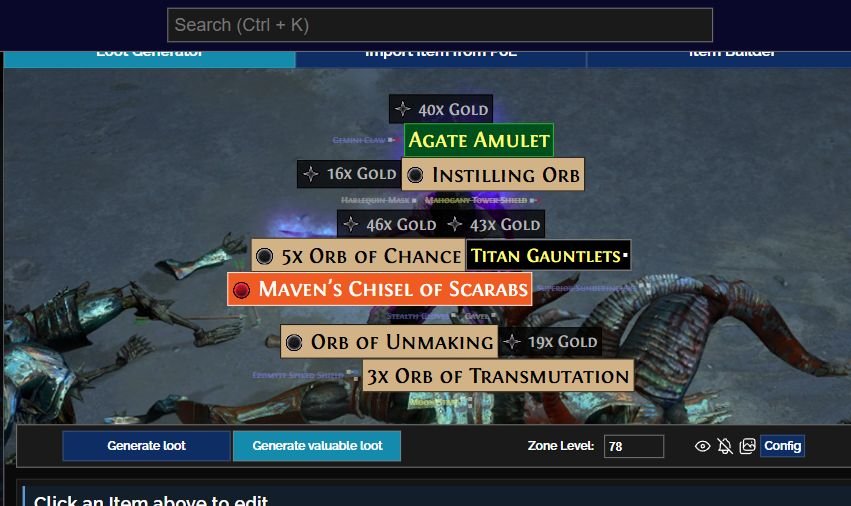
FilterBlade (2026): o Loot Generator simula rótulos com cores, tamanhos e destaques diferentes em PoE 1. Captura editorial realizada pela ZAUS.GG; interface: equipe FilterBlade / NeverSink; elementos do jogo: Grinding Gear Games. Não é uma sessão de gameplay.
You defeat a pack in Path of Exile and find weapons, armour, currency and other resources. During the campaign, one piece can solve a damage or resistance problem. In maps, dozens of item labels compete for attention. A Loot Filter organizes how those drops are displayed; NeverSink supplies a ready-made foundation, and FilterBlade lets you customize it. This guide covers installation, customization and troubleshooting without requiring programming.
Revised October 26, 2026. Reference: Path of Exile 1, patch series 3.29 — Curse of the Allflame. The official filter listing identifies PoE1 3.29.3b, NeverSink is at 8.20.2, and FilterBlade’s interface is 1.1.6730; these are different version numbering systems. The screenshots document public browser tools, not gameplay. Do not use a PoE 2 filter as if it were compatible with PoE 1.
Nesta matéria
What Does a Loot Filter Do? NeverSink, FilterBlade, and GGG
A Loot Filter is a collection of conditions and actions the game client uses to display dropped items. Rules can show or hide labels and control:
- Text, background, and border colors.
- Item-label font size.
- Sound alerts.
- Minimap icons.
- Visual effects on drops.
A simple example. Imagine three drops: an ordinary weapon with little relevance at this stage has a subdued label; useful Currency is highlighted; and a priority item plays a sound and displays a minimap icon. The items were generated normally. The filter only directs your attention.
Hiding a label does not delete the item. The Hide Filtered Ground Items option, discussed later, can also prevent the 3D model of hidden items from rendering. Both affect presentation, not rewards. A Divine Orb can trigger a prominent alert without becoming any more likely to drop.
A filter does not pick up, sell, modify or automatically stash items. You still inspect and collect them yourself. GGG officially supports item filters and provides community-filter pages; using one is not the same as automating loot collection.
You can play without a custom filter. NeverSink and FilterBlade’s essential functions are free; continuously automated updates to custom filters are an optional premium service and are not required for free installation or use.
These three components work together but have different roles:
| Component | Purpose | Maintained by |
|---|---|---|
| Item Filter system | Interprets and applies rules inside the game | Grinding Gear Games |
| NeverSink | Supplies ready-made filters, rules and loot classifications | NeverSink and contributors |
| FilterBlade | Customizes, previews, saves and exports filters | FilterBlade / NeverSink team |
NeverSink is a community project maintaining highlighting rules and item tiers at different degrees of strictness. It receives updates as the game and economy evolve. FilterBlade is the online editor built around that base: select strictness, adjust categories and visuals, simulate items and export. Both are independent of GGG, which provides the system executed by the game client.
Start by following a public NeverSink filter through GGG’s official website. Personalize it later if you identify a concrete need. You do not need to build a filter from scratch.
Choosing NeverSink Strictness

| Preset | General behavior | When to consider it |
|---|---|---|
| Soft | Very permissive filtering | Learning and broad equipment needs |
| Regular | Basic organization without hiding too much | Campaign and first characters |
| Semi-Strict | Hides more low-priority items | Late campaign and early maps |
| Strict | More selective display | Characters with more stable gear |
| Very Strict | Significantly fewer visible drops | Endgame with clear priorities |
| Uber Strict | Highly restrictive filtering | Activities producing large volumes of drops |
| Uber Plus Strict / Uber+1 Strict | Even tighter selection | Specific strategies and experienced players |
Increasing strictness generally makes fewer low-priority items visible. Exact behavior depends on the version, game mode and your customizations. FilterBlade labels the last option UBER+1 STRICT; the official filter uses the abbreviation 6uberplu.
The NeverSink README recommends Semi-Strict for new users. Regular is a more permissive alternative if you still inspect many pieces of equipment. A character who has just entered maps may need boots or rings with resistances: Uber Strict could hide exactly the gear they could still use.
Increase strictness gradually when the screen feels crowded, you ignore most of the shown items, and you know which categories must remain visible. Fewer labels can save time, but can also conceal useful resources; a stricter filter does not automatically mean higher profits.
Official Installation: Follow and Activate a Filter
The simplest method for using a preset maintained by its author is:
- Open Popular Item Filters on GGG’s official website and sign into the account you use to play.
- Confirm Game Type: PoE 1. Find author NeverSink#3349, check compatibility, and choose Regular or Semi-Strict according to your needs.
- Open the filter’s individual page and click Follow. Following does not automatically activate the filter currently loaded in the game client.
- Open PoE 1, enter your character, and go to Options → Gameplay. Select the followed filter under Item Filters. If it is missing, refresh the list or restart the client and check your account.
- Verify that the filter loaded without errors and observe labels as you play. You do not need a new character.

Follow maintains a connection with the author’s published filter. Copy creates an independent configuration: do not assume it will automatically receive all the original author’s future changes. FilterBlade’s export options are compared below.
Manually Installing a .filter File on Windows
Use this alternative when you want a local file on your PC. No extra executable is needed:
- Download from the official NeverSink repository or choose Download in FilterBlade. Confirm PoE 1 compatibility and version.
- Extract the ZIP if necessary and check the full extension:
MyFilter.filter. Enable filename extensions in File Explorer;MyFilter.filter.txtis not the same file. - Find the PoE 1 filter directory and copy the file. The traditional Windows path appears below; Documents may be redirected to OneDrive or another location. Do not use the PoE 2 folder.
- Open the game, go to Options → Gameplay, and refresh the list if needed. Select the corresponding filter and check for errors.
- If the client reports an invalid line, note the message and inspect compatibility or manual edits. Copying the file alone does not prove that installation succeeded.
%USERPROFILE%\Documents\My Games\Path of Exile\
NeverSink documents this folder, but it is not universal when Windows folders are redirected. If the client version offers a shortcut to open the filter folder, use it to identify the actual location. That button was not inspected in the client for this revision.
PlayStation and Xbox: do not follow the Windows folder procedure. Prefer account/platform-linked filters when supported, and check the correct account. FilterBlade’s Export screen explicitly indicates that Download does not support console installation. We did not test consoles or their controller buttons.
FilterBlade: From Preset to Customization
Open FilterBlade in your browser. You can use NeverSink without editing every rule; customization is optional.
- Under Start, choose PoE 1 and check Game Mode. Do not transfer a normal-mode setup to a different mode without reviewing it.
- Choose Strictness and a readable visual style. Prioritize contrast, label size, and distinguishable categories rather than selecting the loudest design.
- Use Auto-Adjust for Build if you need equipment categories tailored to your character. Then open Customize and change only categories meeting a real need.
- Under Simulate, inspect item displays and potential hiding. Change one thing at a time so you can recognize its effect.
- Open Export, choose account upload or local download using the comparison below, then select the result in the game client.
Following a filter on GGG’s website does not automatically transfer your customization to FilterBlade. You also do not need premium to use presets, personalize rules, simulate drops, or download a file.
Auto-Adjust: Tailoring Equipment to Your Build
Auto-Adjust for Build changes certain equipment rules based on selected character traits.
- Under START, confirm PoE 1 and open Auto-Adjust for Build.
- Choose Campaign or Endgame. These adjustments are independent: use either or both, with identical or different settings.
- In Campaign, choose a profile such as Bow Ranger, Sword&Shield, 2H Axe/Mace, Fire Templar, or Spells&Minions, or open CUSTOM.
- Review weapon, shield and defence categories. CUSTOM includes Bows, Quivers, Wands, Shields, Armour, Evasion Rating, Energy Shield and hybrid types.
- Select only what your build requires. Read Hide Unselected Gear Aggressively before applying: aggressively hiding other gear can remove alternatives you still need to examine.
- Click Apply, review the relevant categories in Customize and test their appearance in Simulate.
- Export and load the result in PoE. The editor does not equip or change your character.
Does this recognize every build perfectly? No. Class does not dictate equipment. An unusual attack-based Witch might not fit an automatic profile aimed at conventional Witch equipment. Treat the feature as a starting point.
Is it useful during the campaign? It can make certain equipment more visible, but you must still check your build’s actual needs. The Path of Building guide explains how to identify necessary bases and modifiers.

The Campaign → Custom screenshot shows equipment types and profiles opened for documentation, without applying changes to an account. For a bow build, review Bows, Quivers, defenses and any other bases you still need. Test before exporting; do not assume the editor detected a build you never connected.
Customize: Categories, Colors, Sounds, and Icons
Customize changes how different item categories appear.
| Property | What it controls |
|---|---|
| Text Color | Item name color |
| Background Color | Label background |
| Border Color | Label border |
| Font Size | Text size |
| Sound | Audio alert |
| Minimap Icon | Icon on the minimap |
| Beam / effects | Supported visual highlights |
Exact options depend on the rule and editor version. Changing a tier’s appearance affects all items matched by that rule. To highlight one specific currency item, isolate the appropriate condition first rather than recoloring the whole tier. Moving an item to another classification is not the same as changing a color.
Example: highlighting a Currency category.
- Open Customize.
- Open Currency → General Currency. For equipment bases, use the corresponding campaign/endgame section.
- Expand the tier/rule containing the item and inspect its BaseType list.
- Select Edit visuals and sounds. TEXT, BORDER, and BG affect text, outline and background; size appears beside the preview, with sound, icon and effect controls nearby.
- Choose a useful visual distinction, test it in the simulator, then export the new configuration.
Do colors have universal meanings? No. The same item can have different outlines in different filters or NeverSink styles. Color alone does not prove market value.
Can sounds be changed? Yes. FilterBlade supports alert customization, sometimes including custom audio files. Local sound files must be in the expected location; a wrong path can prevent playback. Respect licenses and avoid downloading audio packs from untrusted sources.
Can highlighting become excessive? Definitely. If nearly every item has a bright border and a loud sound, the filter stops helping you distinguish priorities.

The capture shows Currency → General Currency → C Tier and its BaseType list. Editing the tier affects the whole eligible group, not just one currency item. TEXT, BORDER, BG, Sound, Icon and Beam describe supported display and alert controls. It documents the real interface, not a change applied to an account.
Also inspect Maps, Scarabs, Fragments, Divination Cards, Uniques, Jewels, Gems, crafting bases, and campaign gear. If your character needs defenses while leveling, adjust useful bases before increasing strictness globally. The filter cannot know every modifier on an unidentified rare item and cannot guarantee that every expensive piece will be highlighted.
Loot Generator: Testing Labels and Investigating Items
FilterBlade’s simulator lets you examine item presentation without waiting for a specific drop in-game.
- Open FilterBlade with your configuration.
- Select SIMULATE from the sidebar and open Loot Generator.
- Check Zone Level (the simulated area level) and Config if you need to review settings.
- Click Generate loot for a sample, or Generate valuable loot for a sample emphasizing high-priority items. Neither measures real drop rates.
- Examine the labels and identify unsuitable highlights.
- Click an item for details and navigate to the matching Customize rule when available. Help text also mentions right-clicking on desktop or long-pressing on mobile.
- Change the rule and generate another sample.
Can you test a specific item? Tools for building or importing an item representation are available, depending on item type and interface options.
Does the simulator measure actual drops? No. It tests rule matching and presentation, not loot frequency.
Practical example. You change how an equipment base is displayed. Simulate it, check whether the label is legible, and revise before exporting. Simulations cannot guarantee every real item will be classified as expected: some rules depend on particular properties, so in-game validation remains useful.
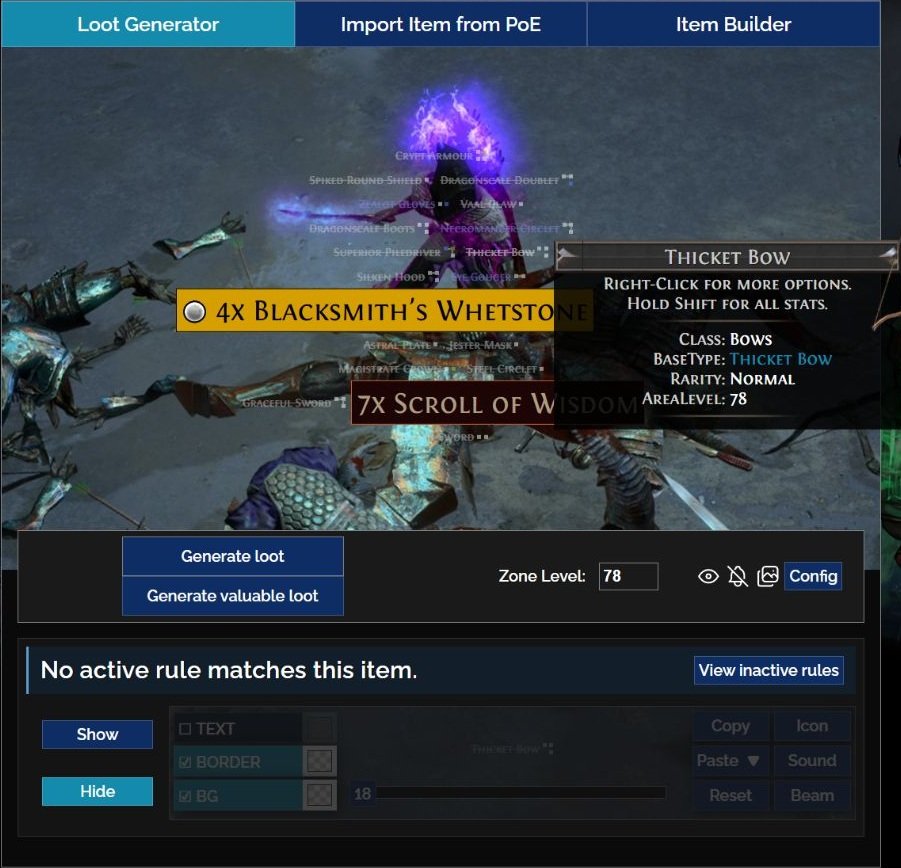
In the documented example, Zone Level 78 and Semi-Strict produce a sample where Thicket Bow is faded and struck through when hidden items are shown. Clicking it reveals No active rule matches this item and View inactive rules. This helps investigate rule coverage; it does not mean the game cannot drop that bow.
To check a particular base, use Item Builder or Import Item from PoE and confirm its properties. When comparing presets, use the same item and comparable conditions. Two different random samples do not establish strictness effects by themselves. The controls for displaying hidden items and playing sounds are also useful.
Interpreting Highlights Without Confusing Them With Prices
| Category | Why it may be highlighted | What you still need to verify |
|---|---|---|
| Currency | Crafting, trading and progression | Quantity, usefulness and current economy |
| Map Items | Atlas progression and activities | Maps your strategy requires |
| Unique Items | Recognizable base and properties | Identity, rolls and demand |
| Divination Cards | Set rewards | Required quantity and usefulness |
| Skill Gems | Quality, level and special versions | Compatibility with your build |
| Jewels | Passive-tree customization | Modifiers and fit in your plan |
| Scarabs and fragments | Access to and modification of activities | Where you will spend them |
| Crafting bases | Base, item level and special properties | Crafting potential and investment |
| Progression gear | May solve a campaign need | Actual affixes, requirements, links and defenses |
| Mechanic resources | Utility in related activities | Item state and intended purpose |
Highlighted, useful, and expensive mean different things. Some Uniques share a base and may not be distinguishable before identification. Rares need affix evaluation. Crafting bases depend on potential and cost. Currency and cards change priority with supply, demand, and use. A loud alert reflects a filter rule’s priority, not a guaranteed sale price.
See the trade, Faustus, and economy guide for pricing and negotiation; this destination remains in PT-BR until a published translation is confirmed. Do not transfer economic tiers from a different league without checking.
Export: Follow, Copy, Sync, Auto Upload, and Download
In FilterBlade 1.1.6730, the flow is Name → Export → Finish. Upload once is the one-time upload referred to as Sync; Auto Upload (every 4 hours) is the premium automated service. These are not extra services hidden behind older names.
| Method | What it does | Maintenance |
|---|---|---|
| Follow | Follows the author’s public filter | Can receive the author’s published updates; verify it loads |
| Copy | Makes an independent copy | Does not imply receiving the original’s future changes |
| Upload once / Sync | Sends your saved configuration to your PoE account | One-time upload; repeat after changes |
| Auto Upload / Sync Auto | Automates updates through the premium service | Subject to the service terms; not required for free use |
| Download | Downloads a .filter file for PC | Replace manually after updates; no local console installation |
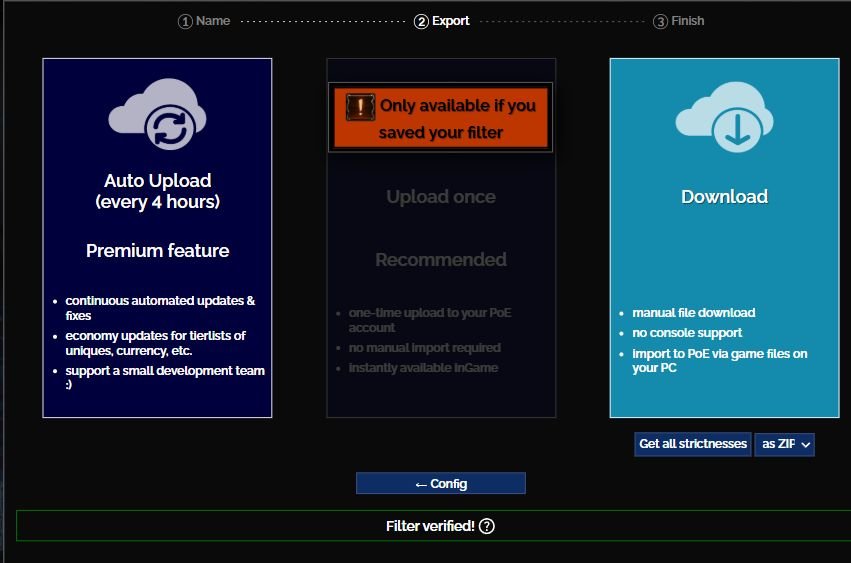
To save a filter and upload it to your account, use Login with PoE at the legitimate destination, verify the account, and follow the naming flow. In an anonymous session, Continue without saving allows you to reach Download, but Upload once remains disabled because it requires a saved filter. Anonymous downloads do not prove a configuration was saved under My Filters.
After exporting, select the correct filter in the game client and inspect labels. A successful Sync does not replace that selection, nor does it mean an old local file receives future changes. This review inspected only the public interface: no login, account upload, Follow, Copy or purchase was performed.
Updating: My Filters and NeverSink 8.20.2
Review your filter at league start, after major changes or when its rules no longer fit your activity. New items and economy adjustments may call for category changes.
- Sign into the appropriate account on FilterBlade, open My Filters, and load your saved setup. Do not confuse this with importing an arbitrary external file.
- Check the current base, migration notices, and the NeverSink changelog. Loading/exporting may use the current base; an old downloaded file is not retroactively updated.
- Review important custom categories and simulate affected items. Old customizations are not guaranteed to remain appropriate forever.
- Open Export and perform another Upload once or Download. Saving and exporting are part of the present flow; do not search for an old separate Save button.
- On PC, replace your local file if using Download. In-game, verify the selected filter and load the current version.
Specific 8.20.2 warning: the changelog tightened Cluster Jewel matching and reset Cluster Jewel tiering in PoE 1 saves because previous rules could also match unrelated enchantments. Review any customization in that category. This does not mean all filters or personalizations were deleted.
My Filters requires authentication and was not opened under an account for this revision. The maintenance procedure is documentation-based, not an authenticated test.
Campaign and Sockets: What Changed in 3.29
During Acts 1–10 your character is still building its fundamentals. An overly strict filter can hide useful gear.
Priorities often include: compatible weapons, resistance gear, suitable links, flasks, leveling currency, required bases, and skill-related resources. If a filter conceals a weapon base needed by your build, adjust that category. Regular or Semi-Strict can be sensible starting points. Increase strictness when too much irrelevant loot appears; lower it if needed upgrades are disappearing.
Does Exile-UI replace a Loot Filter? No. Exile-UI in the Acts 1–10 campaign guide assists with route progression; a Loot Filter controls drop presentation.
Patch 3.29 importantly changed socket colors. Previously, a gem generally had to match the socket color. Now gems fit sockets of any color. Sockets are white by default, with a chance to be red, green or blue. When socket and gem colors match, the gem gains +10% Quality.
Are links still needed? Yes, conventional Skill Gems and Support Gems still rely on their connections. Old filters emphasizing mandatory color combinations may no longer be useful, but proper links and some socket configurations still matter.
Use an up-to-date NeverSink or other filter compatible with 3.29, and inspect its socket rules. Old advice claiming that gem and socket colors must match to insert a gem is outdated. See the skill gems, supports, and links guide and the official 3.29 Gem Socket Changes notes.
Early Maps, Farming, SSF, Hardcore, and Ruthless
After Act 10, priorities change. The first steps after the campaign explain that transition as you develop the Atlas.
What matters? Map Items for Atlas progression; Currency for trading and crafting; equipment bases for upgrades; Scarabs for chosen strategies; Jewels, gems and mechanic-specific resources for your build and activity.
Should you switch to Strict immediately? Not necessarily. Semi-Strict may be better if you still need basic upgrades; Strict can be useful when gear is stable and most visible drops are irrelevant.
Ask: Of everything my filter shows, how much do I actually inspect or pick up? If most items stay on the ground, you may increase strictness—but preserve the categories you rely on. Before hiding equipment, consult the resistances and defenses guide (PT-BR link pending translated publication).
For endgame, adjust categories to loot volume and strategy: maps, Scarabs, fragments, Currency, Jewels and important bases. Often a targeted change is enough; there is no universal farming preset. Our maps, modifiers, and Scarabs guide is currently linked in PT-BR.
Solo Self-Found (SSF): without conventional player trading, a crafting base that is cheap in trade may be very valuable for making your own gear. Do not rely exclusively on a trade league’s economic tiers.
Hardcore: dying has greater consequences, so defensive equipment and survival resources may deserve more attention. There is no single mandatory Hardcore filter.
Ruthless: item availability and progression follow different rules. NeverSink and FilterBlade support mode-specific configurations. Official filter syntax uses Minimal in Ruthless instead of simply mirroring conventional Hide rules; renaming a regular Softcore file does not make it compatible. Match the filter to your actual mode, not just character level.
Hidden Items: Labels, Models, and Controls
Did the drop disappear, or did the filter merely hide its name? Hiding rules generally affect presentation, but a separate setting matters.
Hide Filtered Ground Items controls rendering of 3D item models that the filter hides, which can reduce rendering work. It is not the same as toggling labels with Z, or pressing an item-highlighting key; these are distinct controls.
Does holding Alt always reveal everything? On standard PC controls, Alt commonly highlights items and objects, but cannot be guaranteed to reveal absolutely everything under every configuration. A model that is not rendered is different from an item ceasing to exist. Check Always Highlight and your actual key bindings rather than concluding a drop was deleted.
What does Z do? Under usual PC controls it toggles item-label visibility on the ground. If all names vanish unexpectedly, check the assigned key and setting.
How to investigate:
- Open Options and review Gameplay.
- Verify which Loot Filter is selected.
- Check Hide Filtered Ground Items.
- Review highlight controls and their bindings.
- Temporarily change hiding settings if necessary.
- Try a less strict filter or no custom filter.
- Inspect items on the ground again.
An overstrict or badly customized filter can hide labels for items you need. Do not confuse items hidden by a filter with items that never dropped.
Troubleshooting: Missing or Nonworking Filters
Investigate one symptom at a time. Changing preset, visuals, sounds and mode simultaneously makes diagnosis difficult.
| Symptom | What to check |
|---|---|
| Followed filter missing | Correct account/platform, confirmed Follow, PoE 1, refreshed list in the client |
| Customization missing | Saved configuration and Upload once completed, destination account, exported name, active selection |
| Local file missing | .filter extension, extracted ZIP, actual Documents/OneDrive folder, read permissions |
| Selected, but labels unchanged | Filter really selected; item must match its rules; not every item has a major alert |
| Important item hidden | Strictness, game mode, category, rule conditions, rule priority, current version, simulator |
| All names disappeared | Highlight bindings, Always Highlight, label toggle; distinguish from 3D models |
| Parse/syntax error | Error line/message, PoE 1 compatibility, source and manual changes; restore last working file |
| Custom sounds missing | Audio files, paths, volume, alerts, usage rights |
| Visuals changed after update | Changelog, migrated categories, Cluster Jewel tiering changed by 8.20.2 |
| Filter intended for PoE 2 | Obtain a PoE 1 version; renaming cannot convert syntax |
.filter Files: Basics Without Programming
Follow and FilterBlade do not require coding. A .filter file can test class, base, rarity, item level, sockets, links and other recognized attributes, then define how matching items appear. This fragment is illustrative only and cannot replace a complete NeverSink filter:
Show
    Class "Currency"
    SetFontSize 40
It displays Currency items at font size 40. Every condition in a block must match. Normally, the first matching rule ends evaluation; Continue allows later rules to be considered. GGG’s official filter documentation explains Show, standard Hide, and Ruthless Minimal.
An overly broad rule in the wrong position can override more specific rules. Avoid rewriting hundreds of NeverSink rules without understanding their dependencies. Experimental import of external filters into FilterBlade is not the same as loading a saved setup in My Filters, and may not support every customization. Most players should stick to the visual editor.
Example: A Bow Build From Campaign to Maps
Consider a hypothetical player starting their first league with a bow. This is an instructional example, not gameplay tested by ZAUS.GG. The first-build guide helps identify which equipment matters.
- Start with a working preset. Follow NeverSink Semi-Strict and select it in-game. If many potential upgrades still need inspection, consider Regular instead of jumping to Uber Strict.
- Address a real need. A useful bow base appears too subtly. Identify the necessary base, open Campaign Auto-Adjust, check Bows, Quivers, and defenses, and leave aggressive hiding disabled while considering alternatives.
- Customize and validate. In Customize, locate the category and examine its conditions. Adjust only the relevant highlighting, then simulate the same representative item before and after. Export, select the result, and verify it in-game.
- Evolve with your activity. In early maps, keep resistance upgrades and Atlas resources visible. Increase strictness only when you no longer need most visible drops. For particular farms, preserve their specific resources and revisit the filter when the league or underlying rule base changes.
Checklist Before You Play
- Correct game, mode, account and compatible version.
- Strictness that suits the equipment and resources still needed.
- Follow, Sync or local file completed and the filter selected without errors.
- Customized categories tested using representative items.
- Readable visuals and sounds, including local audio files when required.
- Update method understood and configuration saved when relevant.
- Highlight and hide controls understood.
A working preset may already be enough. Customize only in response to a real need and avoid complexity that does not help you identify your next upgrades.
Image and source credits: ZAUS.GG’s own editorial screenshots of FilterBlade’s public interface. Cover, Strictness and Export: October 23, 2026; newer screenshots: October 26, 2026. Interface: FilterBlade / NeverSink, version 1.1.6730; official website and Path of Exile elements: Grinding Gear Games. Simulations are not gameplay. Enlarge the original images as needed. No Creative Commons license is presumed for third-party elements. This review did not sign into FilterBlade, synchronize an account or use the PoE 1 client; client instructions were checked against documentation. utilizou login no FilterBlade, sincronização de conta nem cliente PoE 1; as instruções do cliente foram conferidas documentalmente.
About the Author